Roflocator in Stock
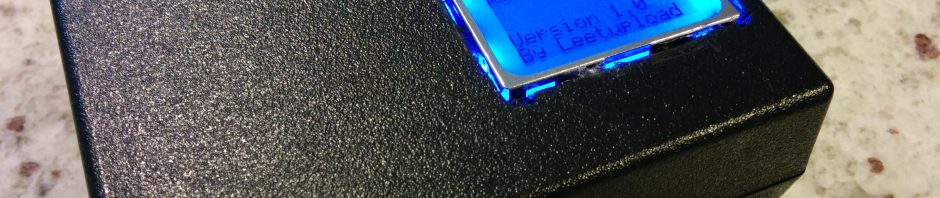
Just wanted to make a quick post showing a slightly newer version of the Roflocator up for sale. I currently have 3 in stock and ready to ship. If you are interested in purchasing, please email me at admin@leetupload.com for … Continue reading
The Roflocator: My Journey into Product Development
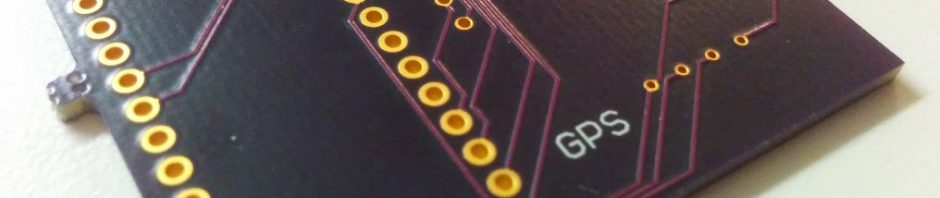
Note: For international orders, please contact me for the exact cost of shipping. Customization w/ 9V Battery Cable $95.00 USDw/ LiPo Battery Cable $95.00 USDw/ GPS Case $100.00 USD I want to use this page to convey my thought and … Continue reading
The Roflocator – Now Taking Pre-Orders
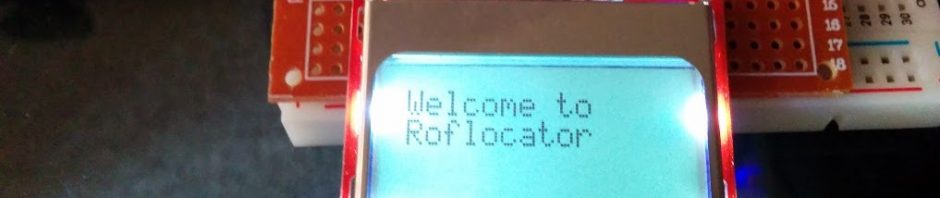
Note: For international orders, please contact me for the exact cost of shipping. Customization w/ 9V Battery Cable $95.00 USDw/ LiPo Battery Cable $95.00 USDw/ GPS Case $100.00 USD Have you ever lost your quadcopter? Do you lack the means … Continue reading
How to Mount a Nexus 7 Tablet
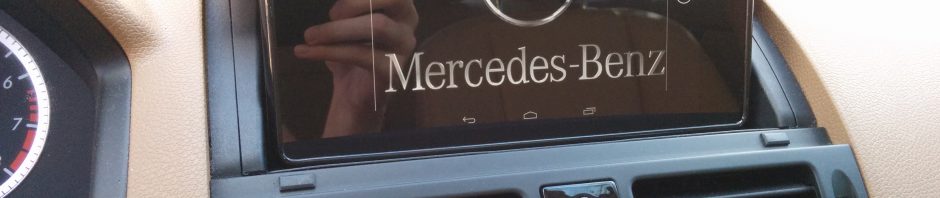
I wanted to mount a Nexus 7 tablet in my vehicle after seeing posts on mbworld.org. Could be fun, right? Well, here are some things to consider: Tablets are not made for this environment, especially considering the operating temperature of … Continue reading
Analyze and Crack GSM Downlink with a USRP
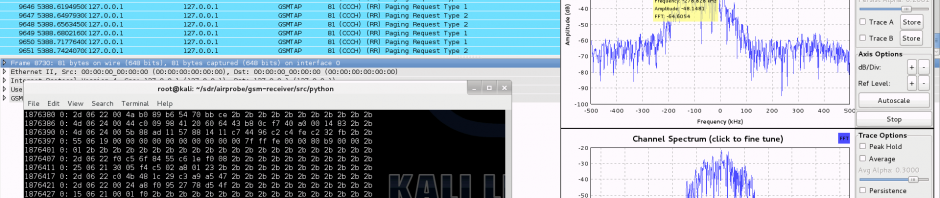
A fairly-well documented article has already been written about this for RTL-SDRs. But what about the USRP folks out there? The article’s cited files to use are even RTL-SDR geared. The easy response to that would be to suck it … Continue reading
GNU Radio Companion: Blind Replay Attack with a USRP
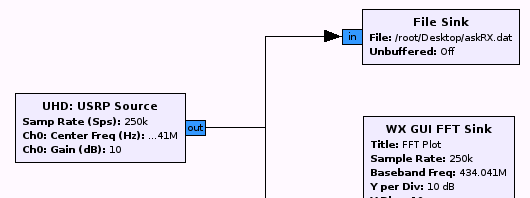
Replay attacks are probably the most rewarding tests to perform with a software defined radio — instant gratification (that is, if it works). No need to know the modulation, baud rate, deviation, frequency — well, you definitely need to know … Continue reading
X Gon’ Give it to Ya: Transmitting FM Radio Over the Air Waves
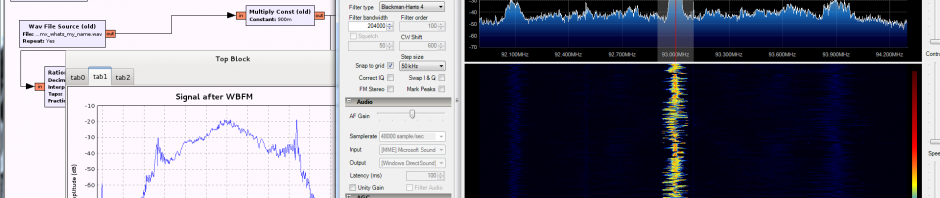
Who out there misses all of the dog barking, grunting, and terms of endearment toward women provided by our beloved DMX? Something tells me that he is missed on our radio waves. With this brief entry, I will quickly breeze … Continue reading
Replay Attack: Remote Control Outlets and RFCat
In my previous post, I discussed the possibility of controlling one of those handy remote controlled outlets. Well, I got a hold of one, and decided to put my previous post to the test. I’ve even included a video, along … Continue reading
Non-Return-to-Zero ASK/OOK Signal Replay
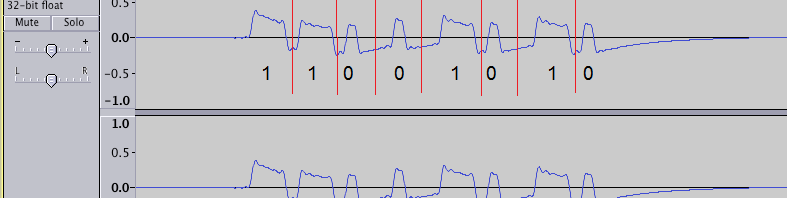
Radios have been around for a long time. Security has not played a very long role within this realm. Consequently, precautions such as CRC, encryption, etc. are not always considered during the transmission of a radio signal. The below tutorial … Continue reading
You know how to send my signal — Setting up RFCat from scratch
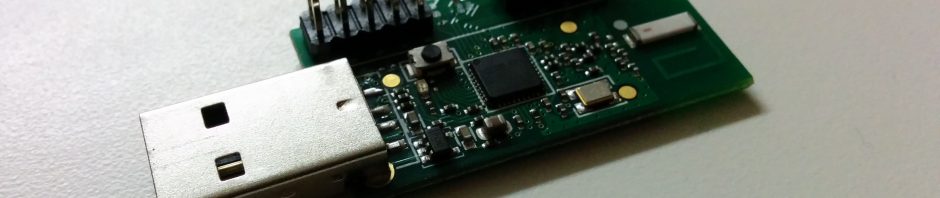
What is RFCat? RFCat is firmware/python-client combination written by “atlas”. This software takes the once-limited TI CC1111EMK and broadens its abilities. Taken from the GrrCon page (where you can buy it for $110 pre-flashed and ready for you to use … Continue reading